Tag: stream editing

  • GTA 6 Stream Highlights: How to Create Lossless Highlights at Launch

    GTA 6 Stream Highlights: How to Create Lossless Highlights at Launch

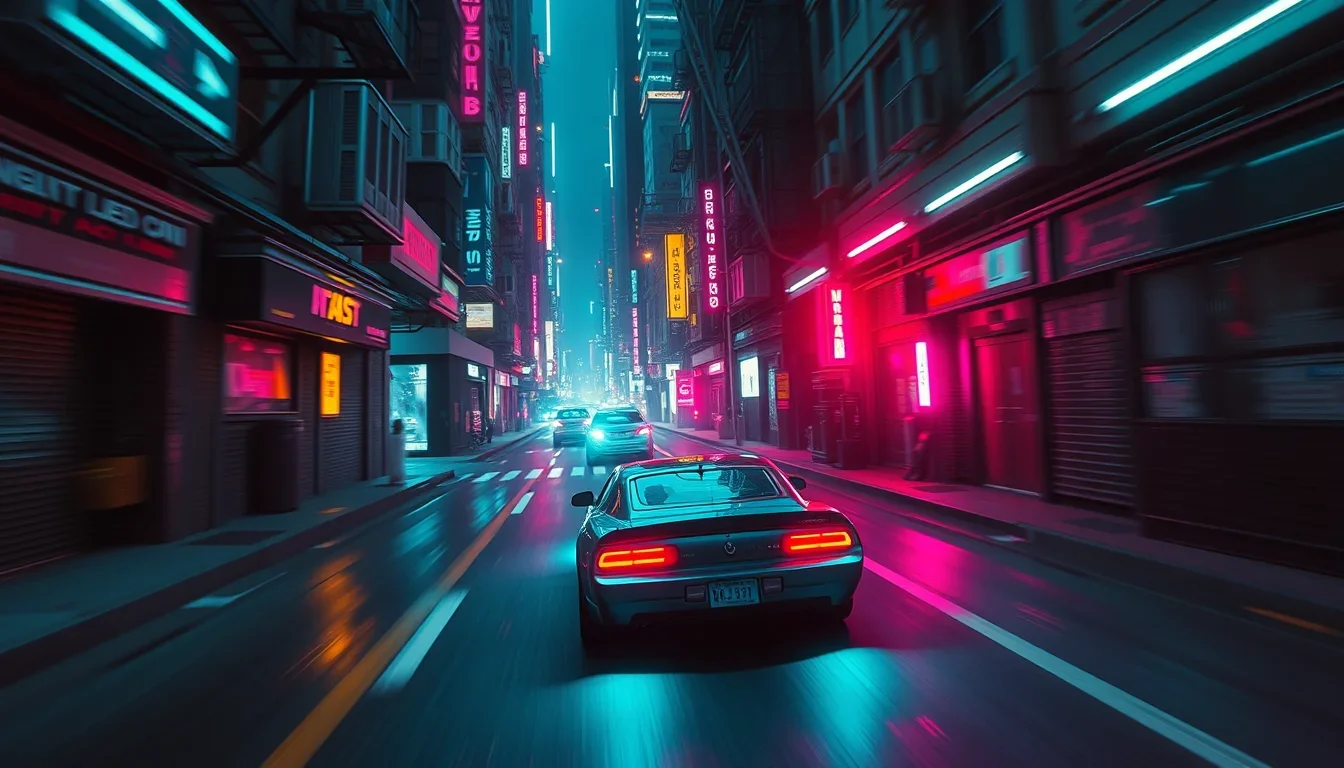
    GTA 6 is on its way, and every streamer wants to package their content to get maximum views. But what if the game is only released on consoles and without GTA Online? We’ll break down how to prepare for launch, what moments to cut to avoid a ban, and how to cut a stream without losing quality, even if you don’t have a second PC.

    Many GTA 6 idea lists ignore a key fact: at launch, the game will be single-player only. This means no RP servers or complex GTA Online heists on day one. Your content should be built around what’s actually available: story mode, open world, and challenges.

    Preparing for GTA 6: Content Strategy for Streamers at Launch

    What will be available at GTA 6 launch (and what won’t)

    Your content plan directly depends on the game’s functionality at launch. Here’s what’s confirmed and what not to expect:

    • Confirmed: Single-player campaign, open world of Leonida, playable on PlayStation 5 and Xbox Series X|S.
    • Absent: GTA Online at launch (release date not announced), PC version (no mods, no FiveM).

    History repeats itself: GTA 5 and Red Dead Redemption 2 were initially released with story mode, and online components were added later. Don’t speculate on what isn’t there to avoid losing audience trust. All ideas below are for the single-player version and console streaming.

    GTA 6 Content Ideas That Will Work From Day One

    For your clip conveyor to work, you need clear ideas. Here’s what you can film from day one:

    Reactions to the first hour of gameplay

    The first impression of Vice City only happens once. Streaming a “blind” playthrough of the first hour is a universal format. The main thing isn’t the city, but your reaction. Keep the camera and microphone on, comment on everything you notice. These are highlights that are easy to cut.

    Open-world chaos without spoilers

    High-speed chases with high wanted levels, physics glitches, NPC reactions – all of this doesn’t touch the plot. Such moments are great for clips, as they have a clear beginning (crime) and end (escape or arrest). This is ideal raw material for short videos.

    Story playthroughs (without spoilers in titles)

    You can stream Lucia and Jason’s story live. Rockstar allows showing cutscenes as part of a full playthrough. But cutting a separate cutscene with a key plot twist and publishing it as a separate clip is a risk. Title your streams by chapters, not by plot twists.

    Challenges and Trials

    Trials add a competitive element to the stream. Examples for single-player: running across the map without cars, surviving a five-star wanted level, “first car you find” missions. This is repeatable content that will remain relevant even after the first week.

    Comparative Content

    Comparing locations, driving, or police AI between GTA 5 and GTA 6. This content remains relevant for a long time, as it is based on your gameplay, not on trailers.

    Community-Chosen Chaos

    Let the chat vote for the next objective: where to go, what to steal, which mission to fail. Unpredictable chat reactions are what viral clips are made of. The person who edits streams will thank you for such structured chaos.

    How to Plan Stream Segments for Easy Editing

    A five-hour GTA 6 stream is not five hours of content, but several bright moments separated by driving. To turn a long video into clips, plan segments with a clear beginning, climax, and end. This will make the clip ready for cutting.

    Two simple rules:

    1. Verbalize segments: Speak aloud when you start a new segment. This will create an audio marker for the VOD.
    2. Pause: After a bright moment, take a short pause before moving on. This will make it easier to find and trim.

    Two Rules That Can Kill Your GTA 6 Clip

    Your content can be removed for two main reasons, and they are not related to editing quality.

    Rule 1: Rockstar Removes Spoilers and Cutscene Compilations

    Rockstar’s policy allows fans to post gameplay, but they remove videos containing:
    GTA 6 stream editing: how to create highlights without losses at launch — illustration 2
    • Game completion.
    • Edited compilations of cutscenes and story dialogues.

    Cutscenes within a full playthrough are allowed. But a 40-second short with a plot twist is exactly what falls under the ban. Film your reaction to the moment, not the scene itself.

    Rule 2: GTA Radio Uses Licensed Music

    GTA radio stations contain real licensed tracks. Rockstar’s license covers the game, but not your stream. Twitch uses an audio recognition system that can mute VOD sections and remove clips with such music. Editing for TikTok from Twitch with in-game music is a risk.

    Practical solution: before streaming, turn off the in-game radio or set the volume to minimum. A muted VOD loses value, as your voice will be muted along with the music.

    Setting Up GTA 6 Stream and Console Recording

    Since GTA 6 will only be on consoles at launch, your setup starts with your existing console. There are three ways to stream:

    1. Directly from the console: PS5 and Xbox Series X|S allow streaming to Twitch from the system menu. It’s simple, but offers less control over overlays and audio mixing.
    2. Capture card + PC: The console connects to a capture card, and OBS on the PC handles the stream, webcam, and audio. This is the only way to separate game audio and microphone audio, which solves the radio problem.
    3. Console recording buttons: PS5 can store up to an hour of recent gameplay. Xbox stores several minutes. This is suitable for capturing a single moment, but doesn’t replace a full VOD.

    If you’re already streaming to Twitch or YouTube from your console, a capture card isn’t needed to create clips. Services like Eklipse can connect to your channel and create clips in the cloud, without installing anything on your console. Automatic stream clipping is becoming a reality.

    Important: Twitch stores past broadcasts for 7 days by default, 14 days for affiliates. Recordings from the first week of GTA 6 will be the most watched, so they need to be clipped quickly.

    Turning long GTA 6 streams into short clips

    Turning hours of GTA 6 gameplay into Shorts, TikToks, and Reels means finding the best moments and editing them into a vertical format with subtitles. Finding moments is the slowest part. Planning segments with clear endpoints (as described above) speeds up the process, as each clip already has a natural cut-off point.

    Use services that automatically find highlights and reformat them into a vertical format. This will allow you to get 20 clips from a stream while interest in the game is at its peak.

    Frequently Asked Questions

    What to stream when GTA 6 comes out?

    Stream what the single-player version supports at launch: reactions to the first hour, open-world chaos (e.g., chases), story missions (without separately publishing spoilers), and repeatable challenges. GTA Online and RP servers will not be available at launch.

    Can I stream GTA 6 and make money from it?

    Rockstar’s policy allows fans to publish and stream gameplay. Only pre-release leaks, videos with the ending, and edited compilations of cutscenes/story dialogue are removed. Always check Rockstar’s current policy on their website before monetizing.

    Will my GTA 6 stream be muted on Twitch?

    Yes, if in-game radio is playing. GTA radio stations contain licensed music, and Twitch’s audio recognition system mutes corresponding sections of VODs and may remove clips. Turning off or lowering the radio volume before streaming is the simplest solution.

    Will GTA 6 be released on PC for streaming?

    A PC version has not been announced. GTA 6 is coming to PS5 and Xbox Series X|S, so streaming will require broadcasting from a console or using a capture card with a PC.

    Do I need a capture card to clip GTA 6?

    No. If you stream GTA 6 from your console to Twitch or YouTube, a cloud-based tool can clip the stream without a capture card or installing anything on your console. A capture card is mainly needed if you want to separate game audio and microphone audio.

    Conclusion

    The best content ideas for GTA 6 at launch are based on what will actually be available: single-player on PS5 and Xbox. Plan segments with clear endpoints, lower radio volume, and film your reactions, not just cutscenes. The launch window is short, and VODs expire. Use services for mass cutting 100+ clips to turn your GTA 6 streams into vertical clips while interest in the game is at its peak. Are subtitles needed? For TikTok and Shorts — definitely yes, it increases engagement. Don’t miss your chance!

  • How to Create a GTA Movie: Secrets of Hollywood Stream Editing

    How to Create a GTA Movie: Secrets of Hollywood Stream Editing

    Do you want your GTA videos to look like a real blockbuster, and not just a gameplay recording? Turning raw footage into a captivating movie clip is not magic, but a well-thought-out approach. In this article, we will analyze how, with the help of Rockstar Editor and a few key principles, to create cinematic GTA stream cuts that will gather millions of views and be perfect for TikTok. Forget about boringly following the player – it’s time to start telling stories!

    What Makes a GTA Video Truly Cinematic?

    The essence of a cinematic GTA video is not just beautiful graphics, but the ability to tell a story. Even without dialogue or a complex plot, one clear moment, be it a chase, a stunt, or a car arriving at night, can become a full-fledged scene. The main thing is a clear idea and an effective climax.

    • One simple moment: Focus on one idea – a car arriving at night, an intense chase, a flawless motorcycle jump.
    • Purposeful camera: Forget about the camera following the player. Every angle should be well thought out.
    • Controlled lighting: Use the capabilities of Director Mode to create the right atmosphere.
    • Editing with a climax: Every shot should work towards the overall idea and lead to the resolution.

    Planning is Key to Success

    The mistake of many is to start editing without a clear plan. Cinematic GTA stream cuts require preliminary preparation. Before pressing the record button, answer five questions:

    1. What is the main idea of the scene?
    2. Where will it take place?
    3. What time of day and what weather?
    4. What key angles are needed?
    5. What is the climax?

    Director Mode: Your Personal Film Set

    Director Mode in GTA 5 is a powerful tool for planning. It allows you to:

    • Choose an actor.
    • Change the weather and time of day (8 presets from midnight to sunset).
    • Adjust pedestrian and traffic density (fewer random passers-by – a cleaner shot).

    “Director Mode will not open if you are wanted, in a car, or on a mission. Clear your wanted level, exit the vehicle, and try again!”

    Capturing Footage: Shoot More Than You Need

    To create a full 30-second scene, you will need a minimum of five different angles. For example: a wide shot of the city, a wide shot of a car on the road, a tracking shot, a close-up of the driver, then an action shot. This is about 6 seconds per shot.

    • Shoot with a margin: Do several takes of each action. Traffic and physics change, and the third jump usually looks better than the first.
    • Use Rockstar Editor: To record on PC, hold Alt, then F1 to start and F2 to stop.
    • Action Replay feature: If you missed a moment, this feature will save the last 30-90 seconds of gameplay.

    Editing in Rockstar Editor: From Raw to Highlights

    Rockstar Editor is available on PC, PS5, and Xbox Series X|S. Important: it has been removed from PS4 and Xbox One versions, as have all saved clips. On PC, the editor menu opens from Story Mode, not GTA Online. This means you can record clips in Online and edit them in Story Mode.

    How to create a GTA movie: secrets of Hollywood stream editing — illustration 2

    Rockstar Editor tools for cinematic editing

    • Free camera: Allows you to move, rotate, and aim the camera at a character, vehicle, or animal. Important: the range is limited, but single-player mods can fix this.
    • Blend modes: Determine the nature of camera movement. Linear for mechanical movements, Smooth for fluid, cinematic ones.
    • Blend Easing: Adjusts the speed of camera movement. Enabled — accelerates/decelerates; Disabled — constant speed (like on a dolly).
    • Depth of field: Blurs the background, focusing attention on the main object (character’s face, car emblem).
    • Filters: Set color correction for each marker — from black and white to muted tones.
    • Speed markers: Allow you to create a slow-motion effect at the moment of impact and return to normal speed before and after it.

    Turning long videos into TikTok cuts

    Once you’ve created your cinematic scene, the next step is to package the highlights into short formats. A two-minute cut usually contains one, sometimes up to three short videos (Shorts).

    • Duration: Cut the strongest 10-60 seconds.
    • Climax: Place it in the first few seconds.
    • 9:16 format: Optimize the video for vertical viewing on mobile devices.

    Services like Eklipse can significantly speed up this pipeline: they automatically find candidate highlights in your VODs, trim and reformat them into vertical format without manual cropping. This allows you to mass-cut 100+ clips and save time.

    GTA 6 and Cinematic Videos: What Will Remain Relevant?

    Rockstar has announced GTA 6 for PS5 and Xbox Series X|S, but has not yet confirmed the presence of a built-in editor. It’s not advisable to plan content creation based on tools that don’t exist yet. However, the fundamental principles of cinematic quality will remain the same:

    • Scene Planning: It’s important to choose one moment, shoot it purposefully, and edit it.
    • Multiple Angles: Shoot more than you think you need.
    • Smooth Camera Movements: Use “Smooth blends” for natural transitions.
    • Editing on Action: Cut frames at the peak of the action.

    Even if GTA 6 doesn’t have its own editor, the built-in recording functions on PS5 (Create button) and Xbox Series X|S (Share button) will allow you to capture gameplay. The main thing is your vision and the ability to package raw footage into an attractive format.

    Frequently Asked Questions

    • How to make a cinematic video in GTA 5?

    • Can I use Rockstar Editor in GTA Online?

    • Is Rockstar Editor available on PS4 or Xbox One?

    • Why doesn’t Director Mode open?

    • Will Rockstar Editor be in GTA 6?

    Conclusion: Monetizing Streams Through Clips

    Creating cinematic GTA videos is not just a hobby, but a way to monetize streams through clips. By turning hours of gameplay into highlights, you get content that works twice: a full version for YouTube and 10-60 second vertical videos for TikTok. This allows you to reach a wide audience and order 20 clips from a stream so that your pipeline runs smoothly. Develop the skills of a person who cuts streams, and your audience will thank you! Learn how Eklipse can help you cut GTA moments.

  • Stream Snippets: Riverside or Zencastr – Which to Choose for Maximum Productivity?

    Stream Snippets: Riverside or Zencastr – Which to Choose for Maximum Productivity?

    Hello, producers! Today, we’ll break down how to choose the ideal platform for recording and subsequently editing streams and podcasts, so your content soars to the top, and you don’t spend hours on routine tasks. We’ll compare two powerful systems – Riverside and Zencastr – and see how their “raw footage” looks on an editor’s timeline. The main takeaway: choose a tool that fits your workflow, not just based on “which one records better.”

    Choosing a Platform for Stream Editing: Riverside vs. Zencastr

    In a world where content reigns supreme and user attention is measured in seconds, effective stream editing becomes not just a convenience, but a necessity. Choosing the right platform for recording and editing can drastically change your workflow and the quality of your final product. Today, we’ll dive into a detailed comparison of two industry giants – Riverside and Zencastr – to help you determine which one will become your indispensable assistant in creating high-quality content.

    Riverside: A Conveyor Belt for Video Content

    Riverside positions itself as a solution for video content creators focused on YouTube, LinkedIn, and TikTok. It’s an ideal choice if your success depends on catchy YouTube thumbnails and the first 10 seconds of vertical clips.

    Key Features of Riverside:

    • Local recording of each participant: Video and audio are recorded directly on the guest’s device in high quality (up to 4K), ensuring “crystal clear quality even with a poor connection,” as noted by SourceForge. This is critical for editing without loss of quality.
    • Magic Editor: A powerful AI tool for automatically removing silence and filler words, changing layouts, and branding videos.
    • Magic Clips: Automatic creation of vertical short clips with subtitles, ready for Instagram, TikTok, and YouTube Shorts. This is every streamer’s dream who wants to turn a long video into clips in minutes.
    • AI translation and lip-sync: (promised by 2026) will allow dubbing videos up to an hour long into over 100 languages.
    • Producer Mode: Allows a producer to connect remotely, using only one professional spot.
  • Live Streaming: ability to stream directly to YouTube, Facebook, LinkedIn, and TikTok simultaneously.

Zencastr: Audio Focus with Powerful AI Add-on

Zencastr was originally an audio solution, but it has evolved to include video, AI editing (ZenAI), and podcast hosting. It’s an excellent choice for those who primarily create audio versions and consider video a secondary addition.

Key Features of Zencastr:

  • High-Quality Audio Recording: Records uncompressed 48 kHz WAV audio, ensuring no loss of quality.
  • Built-in Podcast Hosting: The standard package at $20/month includes unlimited recording, 1080p video, transcript-based editing, and hosting. This saves budget as you don’t need to pay for Buzzsprout or Libsyn.
  • ZenAI: Removes over 20 types of filler words, eliminates silence, edits by transcript, normalizes volume, and automatically creates vertical clips with animated subtitles by finding “hooks” in the conversation.
  • Multitrack Recording: Like Riverside, Zencastr records separate audio tracks for each guest, simplifying editing (e.g., you can remove one guest’s cough without affecting another’s speech).

Feature and Price Comparison

Both platforms record uncompressed 48 kHz WAV, which guarantees local recording without quality loss. The difference in bit depth is minimal and unlikely to be noticeable after sound normalization.

AI Editing:

  • Riverside Magic Editor: Wider in functionality. It not only removes silence and filler words but also allows changing layouts, branding videos, and automatically generating vertical clips with subtitles. The eye-contact correction and lip-sync in AI translation are breakthroughs. If you want a ready-made long video and 3 vertical clips directly from your browser, Riverside is closer to this ideal.
  • Zencastr ZenAI: More focused. Removes filler words, silence, edits by transcript, normalizes volume, and creates vertical clips with subtitles. If you just need to clean up an audio podcast and get a couple of clips for social media, ZenAI will do it faster.

Prices (as of March 2026, always check vendor websites):

Riverside What’s Included Zencastr What’s Included
Free 2 hours/month, single-track recording, watermark Free 14 days full functionality
Standard ($19/month) 5 hours recording, 720p video, separate tracks Standard ($20/month) Unlimited recording, 1080p video, ZenAI, hosting
Pro ($29/month) 15 hours recording, 4K video, Magic Editor, producer mode Pro ($30/month) Adds filler word removal and social clips to Standard
Business (custom) Asynchronous recording, team access Scale ($50/month) Two shows, four users, dynamic ads
Business ($100/month) Five shows, four seats, unlimited editing

Important: Zencastr Standard for $20 includes hosting, which Riverside does not offer at a similar price. Consider the cost of third-party hosting (e.g., Buzzsprout or Libsyn from $15/month) when comparing.

What will the editor see on the timeline?

We receive raw footage from both platforms weekly, so we know what’s what.

  • Riverside Export: Separate WAV files for each guest and MP4 video for each guest. All videos are perfectly frame-synced. Files are neatly organized in a folder. Markers from the host come as a separate .txt file. When using Magic Editor, you get a ready MP4 and the original multitrack ZIP, which allows the person who cuts the streams to redo everything from scratch.
  • Zencastr Export: Also separate WAV files and video tracks. If you used ZenAI for transcript-based editing, these changes will be “baked into” the audio unless you specifically request the originals.

Real User Reviews (2025-2026)

Riverside Loyalists:

“Did 500+ shows on Zoom. Tried Riverside. Excellent. Switched completely. It was the right decision.” (u/AmirBormand, r/podcasting)

“Have been using RiversideFM as my primary choice since launching my show almost four years ago. Has evolved into a complete recording and editing solution.” (u/Jaded_Stable4292, r/podcasting)

“AGI-like experience. Automatic transcripts; automatic interview highlights; ability to edit audio based on transcript editing… every time I use Riverside I think: ‘wow, this is AI’.” (Trustpilot Review)

Zencastr Loyalists:

“We are currently using Zencastr. The audio quality is very high. There are also multiple backups in case something goes wrong during the session. Plus, it’s super easy to use.” (u/davearneson, r/podcasting)

“In less than five minutes, I was helped by a real person. They helped resolve my issues, and I was able to record/publish my episode using the Zencastr platform.” (u/L3t5G000, r/podcasting)

Riverside Criticism:

“I used Riverside for about 18 months before finally giving up on it. The sync issues were so bad they made editing impossible. For our three hosts, the CFR files would lose sync between clips every 5-10 minutes, but in different places; so I had to cut all three 60-minute video files into about 20 pieces each and add or remove frames here and there to keep them synced.” (u/Pixels_n_Pints, r/podcasting)

“Riverside will get the job done, but we ran into serious sync issues when someone had an unstable connection. It pixelates the video to maximize local upload. We had BAD sync issues. Unacceptable for client work.” (u/CaseLite)

Нарезка стримов: Riverside или Zencastr – что выбрать для максимальной продуктивности? — illustration 2

Zencastr Criticism:

“The only downside is that you can’t use it on mobile phones… which became a big problem for us on two episodes and forced us to use Zoom, which worked fine.” (u/FamilyAddictionCoach)

“If anyone has successfully recorded video and then figured out how to edit it; that’s my current barrier as I’m trying to do more video podcasts now.” (Points to Zencastr’s less developed video editor).

Important Billing Warning: According to reviews on Trustpilot, the main complaint for both platforms is issues with subscription cancellation and auto-renewal. Always choose monthly payments until you are sure the platform is right for you, and confirm cancellations in writing.

Frequently Asked Questions

How to cut a 2-hour stream in 30 minutes?

Use AI tools like Riverside Magic Clips or Zencastr ZenAI. They automatically find the best moments, trim them, and add subtitles, creating ready-to-use clips for social media. This significantly reduces the time for highlight editing.

How long does it take to cut a stream?

Manually cutting 1 hour of a stream can take from 2 to 4 hours. With AI tools, this time is reduced to 30-60 minutes for several clips, and automatic stream cutting can provide a draft in minutes.

What moments are usually cut from streams?

The brightest, funniest, most informative, or emotional moments are cut. These can be key quotes, sharp jokes, interesting discussions, reactions to events, or important announcements. The goal is to create “highlights” or “shorts” that will attract new audiences.

Are subtitles needed for cuts?

Yes, subtitles are critically important for vertical videos. Most users watch content without sound, especially on social media. Subtitles increase engagement and accessibility. Both services offer automatic subtitles.

Can I order 20 clips from a stream from a specialist?

Of course! Many freelancers and studios offer services for mass cutting of 100+ clips or a specific number of clips from streams. Clarify the price per 1 hour of stream and turnaround time. This is an excellent way to monetize a stream through cuts.

How much does it cost to cut 1 hour of stream?

The cost can vary from $20 to $100+ per hour of source material, depending on the complexity of the editing, the number of clips, the need for graphics, and the deadlines. Automatic services are significantly cheaper.

Conclusion: Choose Your Pipeline

So, if your main focus is video content for YouTube and TikTok, with powerful AI tools for quick generation of vertical clips and the possibility of live streams, then Riverside is your choice. It is ideal for those who want to get 9:16 cuts from horizontal video as quickly as possible.

If you are primarily an audio podcaster, value integrated hosting, and need a reliable tool for clean audio recording and AI editing with the ability to create a video “backside,” then Zencastr will be an excellent solution. Its ZenAI perfectly handles the task of cutting a podcast into video.

The main thing is to test both platforms and choose the one that best fits your workflow and helps you package your content most effectively. And remember: always check recording settings and warn guests about the need for stable internet and a good microphone – that’s 90% of success!

Ready to launch your content conveyor? Learn how to choose the perfect microphone and start creating! If you need help with cutting game streams or mass clip cutting, our specialists are always ready to help.